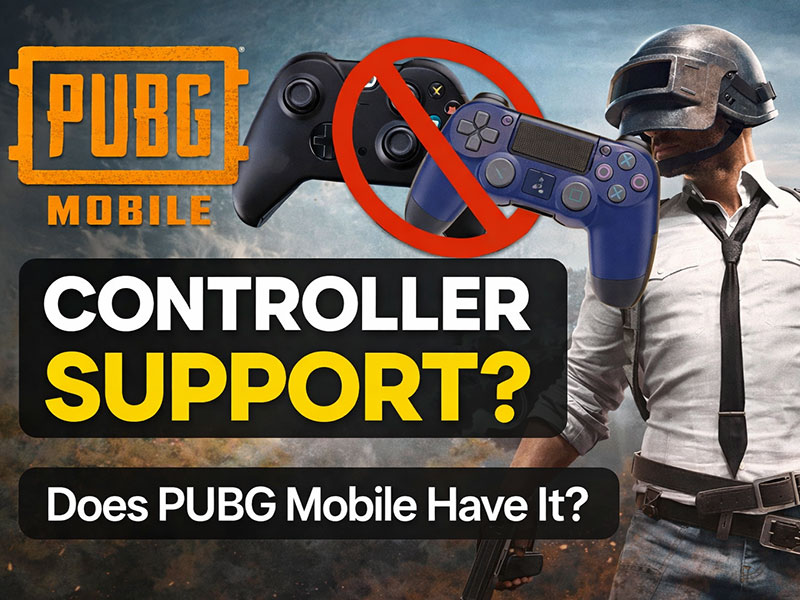
PUBG Mobile does not support controllers on Android or iOS devices, and the use of third-party mapping software may get your account banned in the future. This situation has been confusing for a number of PUBG Mobile users because, compared to touch screens, using a controller gives users more precision and ease when playing. However, things are not as simple as that, and let’s see why.
Of course, PUBG Mobile doesn’t support any sort of controller use, but that’s where your main considerations should lie if you plan to use your controller without getting banned for doing so.
Official Answer: No Controller Support
PUBG Mobile does not support controllers on Android or iOS. You could connect your Xbox controller or your PS5 DualSense via Bluetooth to your smartphone, and it could connect just perfectly. It could connect perfectly. However, your controller will not be recognized on the gaming interface. In fact, if you search through the settings for ‘Enable Controller? Sorry—it’s just not there.
Players’ reaction: “I tried it. For a moment, the left joystick was working!” This generally occurs as a result of system misuse and momentary direction configuration on some Android devices. Is it the root cause? PUBG Mobile was built specifically for touchscreen displays. There were no controller drivers integrated into the game code.
Why PUBG Mobile does not Support Controllers?
This is for fairness. PUBG Mobile is a multiplayer online shooter where up to 100 players compete against each other in each match. If controllers are allowed, then the users of controllers will have an edge over others. Moreover, this is particularly evident for close-range fire exchanges, wherein analog joysticks work faster than the touchscreen. However, this hampers the basic gameplay element that everyone is treated equally.
For this reason, PUBG Mobile is and continues to be a completely touch-screen-based game.
Why Do Some Videos Show PUBG Mobile Played With a Controller?
Perhaps you saw videos on online platforms boasting “Smooth controller gaming” in the PUBG Mobile game. However, the reality is not that straightforward.
Method 1: Third-Party Mapping Apps
Octopus, Mantis Gamepad Pro, ShootingPlus, and Panda Gamepad apps simulate screen touches using controller signals. These apps come with a heavy price tag:
- These apps require accessibility permissions or floating overlays, which can easily be flagged by the system.
- PUBG Mobile’s anti-cheat system (e.g., SafeZone) often flags them as “automation scripts.”
This can result in a 7-30 day ban, or even a permanent ban. The official Terms of Service explicitly prohibit such behavior.
Real example: In 2024, thousands of accounts using mapping software were mass-banned—with no successful appeals.
Method 2: Compliant “Touch-Based” Controllers
Devices like the Backbone One, Razer Kishi, and Flydigi Hornet look like traditional controllers—but work differently. They use physical buttons to press specific screen locations (e.g., fire, jump) without any software intervention.
The game sees these as normal finger taps—no anti-cheat triggers. Zero risk of bans. While they don’t offer true analog stick control, they improve firing rhythm and grip stability. This is the only officially tolerated “controller-like” solution.
How to Improve Control Without a Controller?
True masters don’t rely on peripherals, but on settings + practice. The following methods are safe and efficient:
Enable Gyroscope (Always On)
Path: Settings → Basic → Gyroscope
Tilt your phone to assist with recoil control—essential for stabilizing weapons like the M416 or AKM. Nearly all pro players use this.
Customize Multi-Finger Layouts
Assign actions (fire, aim, peek, reload) to different fingers. Try 4-finger or 5-finger setups to enable advanced techniques like “run-and-gun” or “peek shots.” Practice relentlessly in the Training to build muscle memory.
Use Physical Trigger Buttons
Small spring clips that can be attached to the top of the phone and will initiate “fire” with one push. Simply plug and play without using software. Fully compliant with game rules. Perfect for beginners transitioning to multi-finger play.
FAQ
Will PUBG Mobile support controllers in the future?
Extremely unlikely. Developers have repeatedly emphasized touchscreen fairness and have shown no plans to change this.
Can I get banned for using a Backbone One?
No. It uses physical contact, not software mapping—fully compliant and tacitly approved.
Can I use a controller with emulators like Gameloop?
Yes, but you’ll be matched only with other emulator players, and it’s no longer a true mobile experience.
Why do some Android phones work with controllers?
It might be a temporary system-level mapping, but in-game functions (such as aiming down sights, throwing grenades) still won’t work.
In Conclusion
The charm of PUBG Mobile isn’t about fancy hardware—it’s about skill, game sense, and reflexes deciding victory. Instead of gambling your account on risky mapping tools. You focus on:
- Optimize gyroscope + multi-finger layouts.
- Use compliant physical accessories.
- Practice basic skills diligently in the training.
At the end of the day, it depends on your level of understanding of the game, and not on the device that you’re using. Your thumbs are the strongest controllers that exist for PUBG Mobile, and they always will be.